Examples for importing receipts into Excel
Spreadsheet layouts and review steps for turning receipt OCR output into expense reports.
3 min read · Updated
In short
Build the spreadsheet for monthly totals, category breakdowns and tax review: date, vendor, category, tax amount, total, currency, payment method, document type, source file and notes. Download XLSX to keep amounts as real numbers, and check decimal separators and date formats after import.
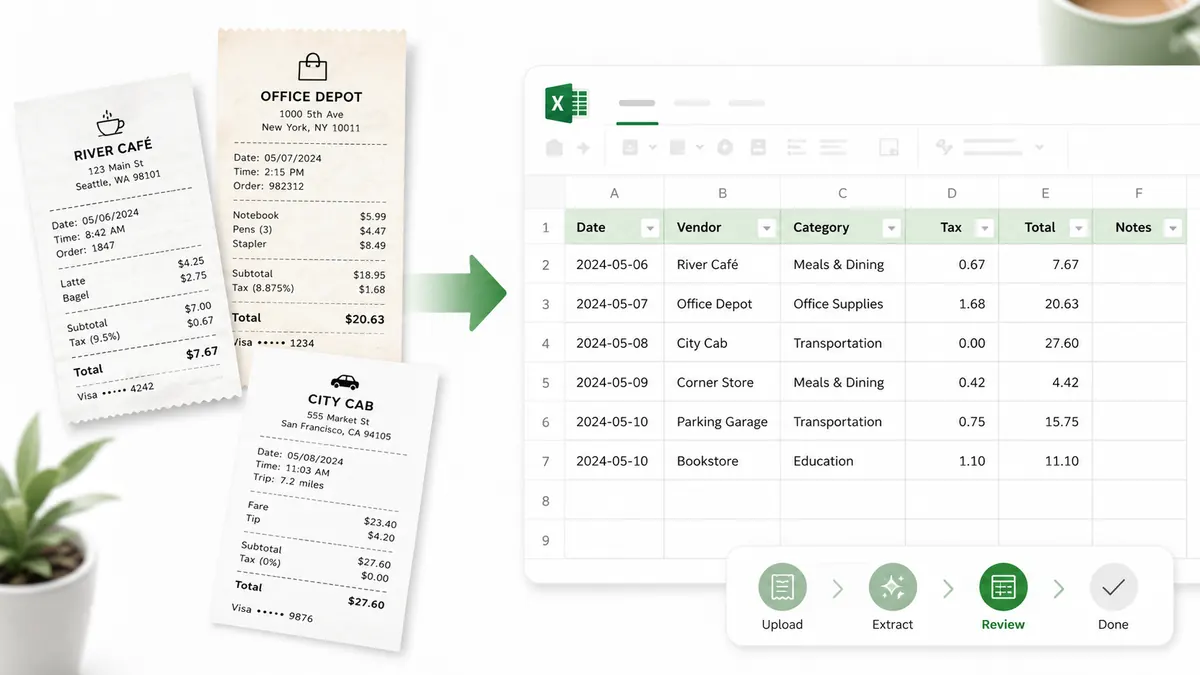
Receipt OCR becomes useful when the output is easy to filter, total, and review. A spreadsheet should be designed for the decisions you need to make: monthly totals, category breakdowns, tax review, and accountant handoff.
A practical starting table includes date, vendor, category, tax amount, total amount, currency, payment method, document type, source file, and notes. If you track projects, add a project or client column.
If your accounting software expects a fixed column layout, set it up once instead of rearranging every export: hide columns, drag them into the order you want, and rename the headers in the results table. The layout is remembered in your browser for the next conversion.
Example one: a freelancer exports all July receipts, filters by software subscriptions, and checks recurring services. Example two: a small shop filters travel and meal expenses before sending a monthly expense report. Example three: an accountant uses the source file column to open the original receipt when a row looks unusual.
After import, check number formats. Decimal separators differ by locale, and an amount imported as text will not sum correctly. ExpenSheet's CSV uses the Excel Unicode profile (UTF-16, tab-separated) with a dot decimal in English and a comma decimal in Turkish and German; if your software expects something else, use the Excel (XLSX) download. Excel (XLSX) exports write numbers as real numbers either way, so the problem does not arise there. Also check dates, because ambiguous formats like 03/07/2026 can mean different things depending on the country.
Keep manual edits visible. If an OCR field was corrected, a note column or highlight can preserve the review trail. That habit improves trust in the spreadsheet over time.