How to convert a receipt to Excel: 4 methods compared
Four ways to get receipts into Excel: typing, Excel's From Picture, general OCR tools and a receipt converter. A comparison table and step-by-step instructions.
5 min read · Updated
Convert receipts to ExcelIn short
The fastest way to convert a receipt to Excel is a receipt-specific converter: upload the photo, and the date, vendor, VAT and total land in separate columns that you check and download as XLSX. Typing works for a few receipts a month; Excel's From Picture is built for tables, so receipts need manual tidying.
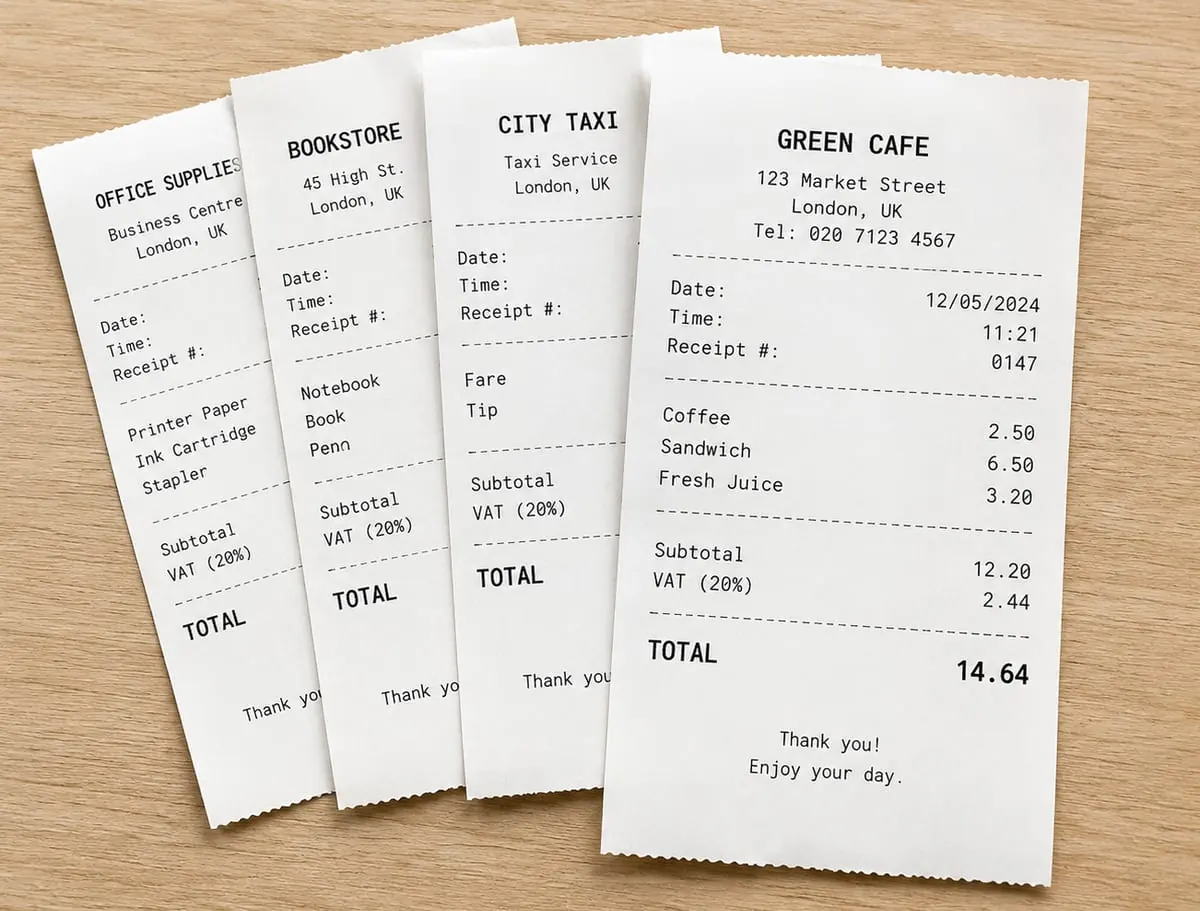
There are four common ways to get the information on a receipt into Excel. The table below sums up when each one fits; the sections after it walk through each method.
| Method | Best for | Pros | Cons |
|---|---|---|---|
| Typing it in | A few receipts a month | No tool needed | Slow and error-prone |
| Excel's "From Picture" | Documents that look like a table | Works inside Excel | Needs Microsoft 365; does not split a receipt into vendor, tax and total columns |
| General OCR tools | Copying the text of a receipt | Many are free | You split the text into columns yourself |
| A receipt converter (ExpenSheet) | Regular receipts and invoices | One column per field, VAT checks | You still review the result |
1. Typing it in
Create a sheet with date, vendor, document number, tax rate, tax amount and total columns, and type each receipt as a row. That is fine for a handful of receipts, but small digits on thermal paper are easy to misread and each receipt takes minutes. Enter amounts as numbers, not text, or your totals will not add up.
2. Excel's "From Picture"
In Excel for Microsoft 365, Data > From Picture turns a photo of a table into cells, and the Microsoft 365 mobile app has a similar feature. It is designed for tables: it does not split a receipt into accounting columns such as vendor, date, tax and total, so you tidy the rows yourself. It is handy for one-off, table-like documents.
3. General OCR tools
General OCR tools give you the text of the receipt to copy. Pasting that text into Excel, splitting it into columns and finding the tax and the total is up to you. Good for extracting text, extra work for building a table.
4. A receipt converter: step by step with ExpenSheet
- Open ExpenSheet, pick the document type and upload a photo or PDF of the receipt; you can select several files at once.
- The date, vendor and tax ID, document number, VAT rate and amount, subtotal and total each get their own column; several receipts in one photo become separate rows.
- Review the flagged fields. A row whose subtotal, tax and total do not add up is flagged, and the check runs again after you fix a cell.
- Download Excel (XLSX), CSV or JSON. In XLSX the amounts are real numbers; you can hide, reorder and rename the columns first.
It is free for 10 pages a day, needs no account, and files are not stored. For invoices, see invoice to Excel.
Which method should you choose?
With five or ten receipts a month, typing may be enough. If you process receipts and invoices regularly, or want the tax in its own column, a receipt-specific converter saves time. Whichever you choose, compare the amounts and the date with the original.
After the import: a checklist
- Is the date column a real date, not text?
- Is the decimal separator right for your Excel's region?
- Do the subtotal and the tax add up to the total?
- Has the same receipt been added twice? ExpenSheet flags repeated rows.
- Have you kept the original receipt image in your own archive?
For worked examples, see examples for importing receipts into Excel and how to fix common OCR errors.
Frequently asked questions
- Can I convert a receipt photo to Excel for free?
- Yes. ExpenSheet converts up to 10 pages a day for free: upload the photo, check the fields and download XLSX. No account is needed.
- Can Excel read a receipt by itself?
- Excel for Microsoft 365 can turn a photo of a table into cells with Data > From Picture. It does not split a receipt into vendor, tax and total columns, so you arrange those yourself.
- What should I check after importing receipts into Excel?
- Check the date and decimal formats, that the subtotal and tax add up to the total, that no receipt appears twice, and compare the amounts with the original.